Church Media Teams
The booth runs Studio. The stage tablet is a teleprompter. The floor monitor is a confidence monitor. Cues go out without anyone walking up front.
See the workflowScrollCue is a free online teleprompter that runs entirely in your browser. Paste your script, hit play, and look your best on camera. Nothing to download, no account to create.
Event Mode
Run the whole show from one device. Studio pushes the script to up to ten teleprompters, feeds confidence monitors, broadcasts cues, and runs a countdown that stays in sync everywhere. Devices pair by scanning a QR code and then talk directly to each other, so your script never touches a server and nobody has to make an account.
How Event Mode works
Recording
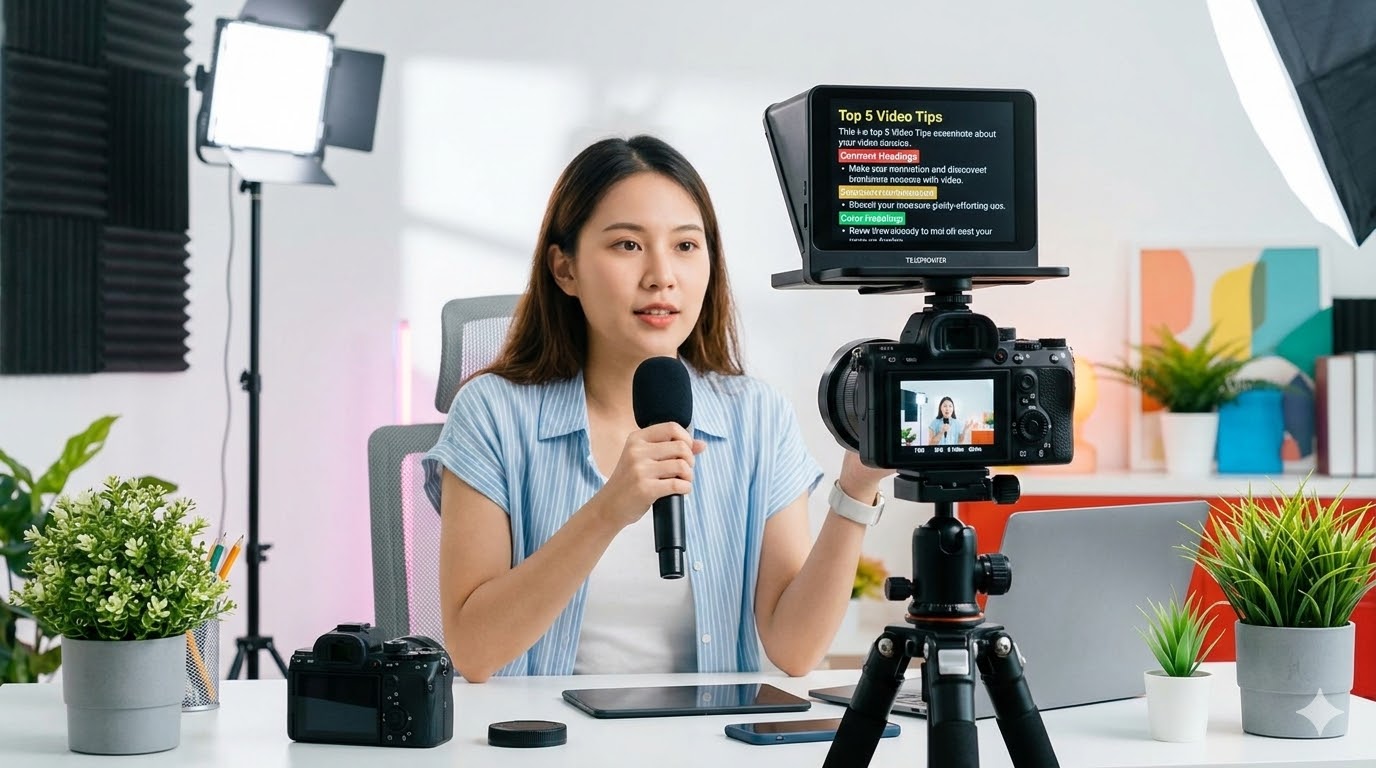
Your camera appears behind the script, so you read with your face already in frame. Hit record and the take starts immediately. The words you are reading are composited into the video, current word highlighted, which makes editing far easier later. Takes stay on your device. Nothing is uploaded, and there is no watermark.
See how recording worksFeatures
The prompter itself is free and always will be. Pro is for when the shoot gets bigger than one person and one screen.
Speed presets plus a fine slider from 10 to 240 pixels per second. Nudge it mid-roll with your scroll wheel. The scroll eases in and out rather than jerking.
Learn moreBold, italic, bigger, smaller, colour, section markers, and presenter notes only you can see. All from plain text you can paste in from anywhere.
See the syntaxSpeech recognition matches your spoken words against the script and glides to where you actually are. Pause and it waits. Skip a sentence and it catches up.
Learn moreStudio, teleprompters, confidence monitors, and phone remotes, paired by QR and connected peer to peer. No server, no account, no cloud.
Learn moreA chromeless window with just the text over chroma key green. Drop it into OBS as a source, key out the green, and the script floats over your scene.
Learn moreFlips the script horizontally so it reads correctly through a beam-splitter rig. Free, and toggleable from any paired remote.
Learn morePrivacy
This is not a marketing line, it is how the thing is built. Scripts live in your browser. Recordings save to your disk. When devices pair in Event Mode they connect directly to each other rather than through us. There is no account system, so there is nothing for us to hold.
What stays local
What we never see
Use Cases
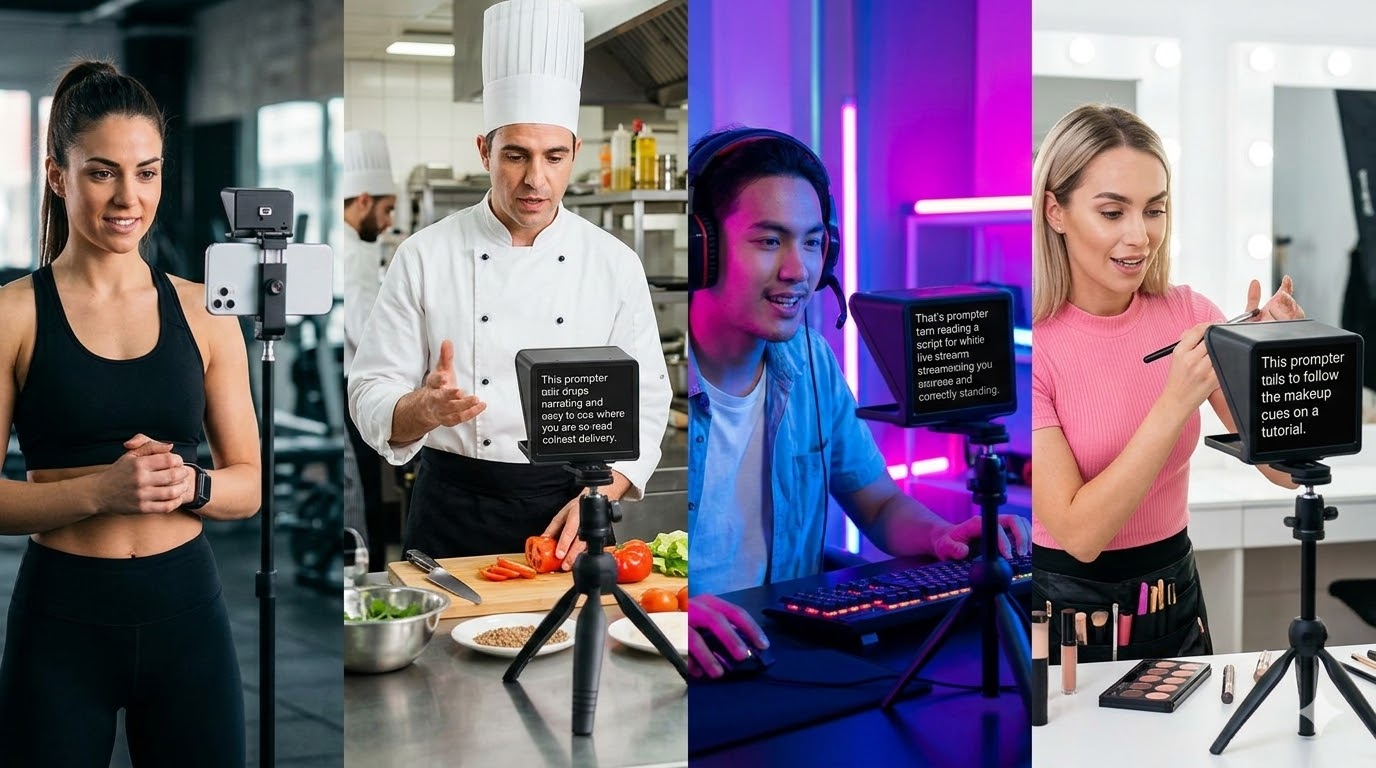
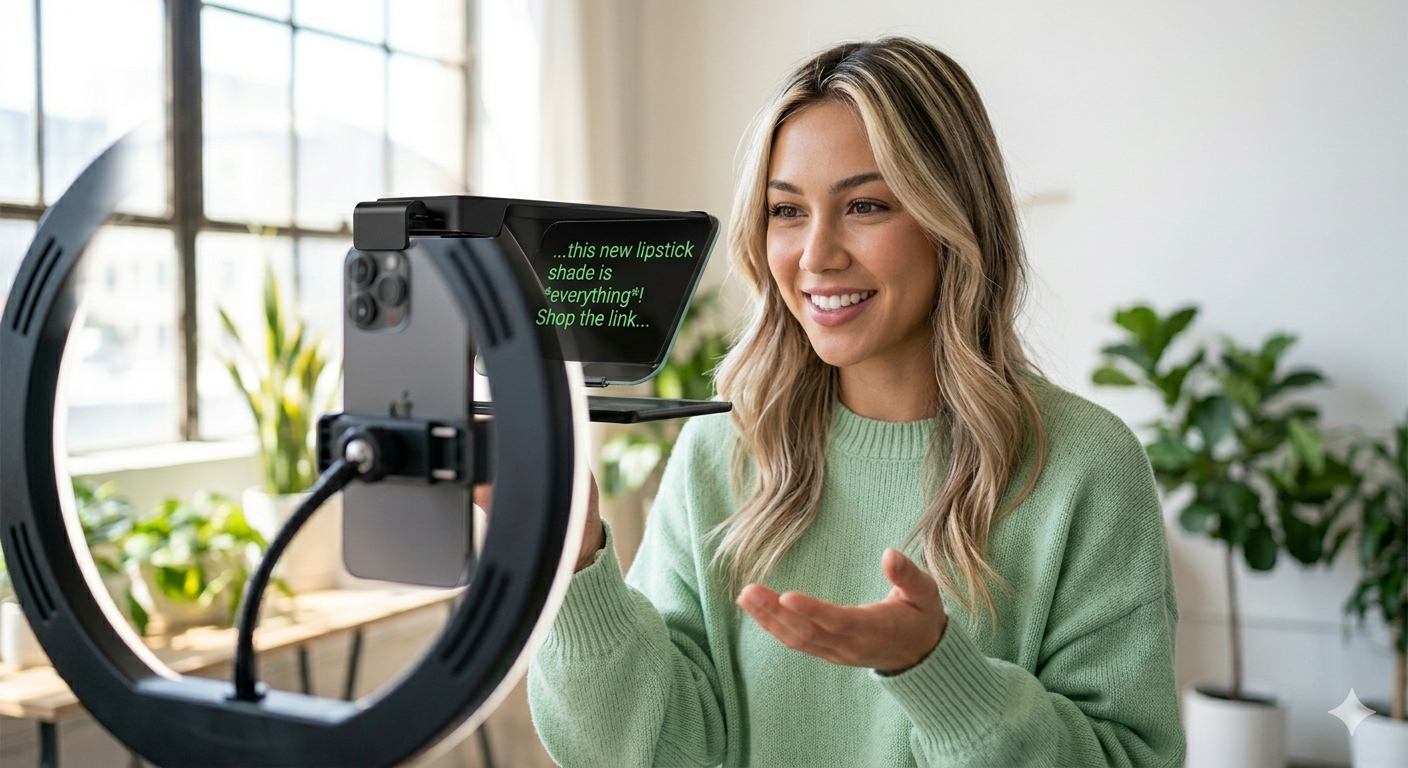
Whether it is a Sunday service with three volunteers in the booth, a conference stage with four speakers, or you alone in a spare room with a ring light.
The booth runs Studio. The stage tablet is a teleprompter. The floor monitor is a confidence monitor. Cues go out without anyone walking up front.
See the workflowSeveral speakers, one script, one countdown, one operator. Late arrivals sync the moment they join.
Learn moreCamera behind the script, one tap to record, voice follow so your hands stay off the controls and your eyes stay on the lens.
Learn moreBlog
Practical advice for looking and sounding your best on camera, from prompter technique to full production setups.
Placement, font size, and pacing. The small adjustments that stop you looking like you're reading.
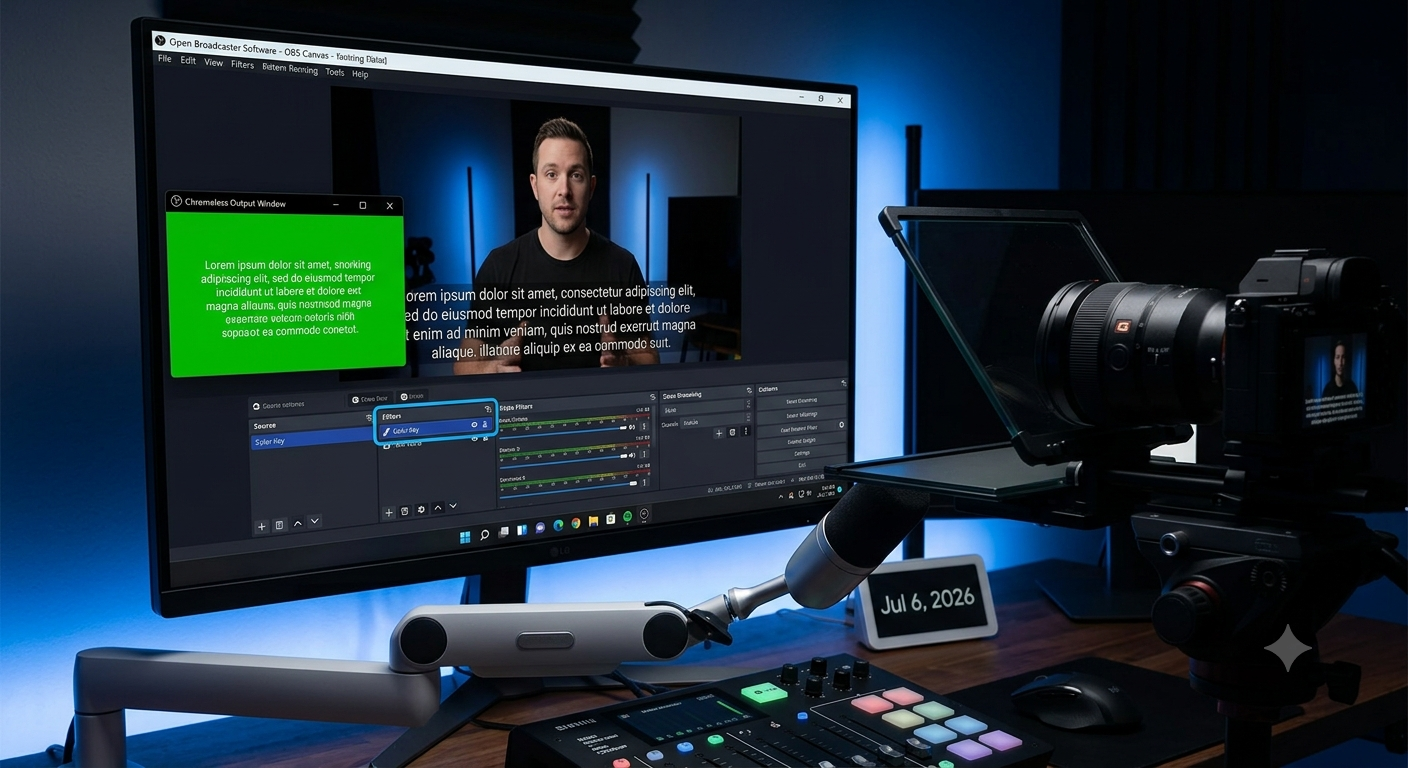
The chromeless output window, the colour key filter, and where to put the text so it doesn't fight your overlays.
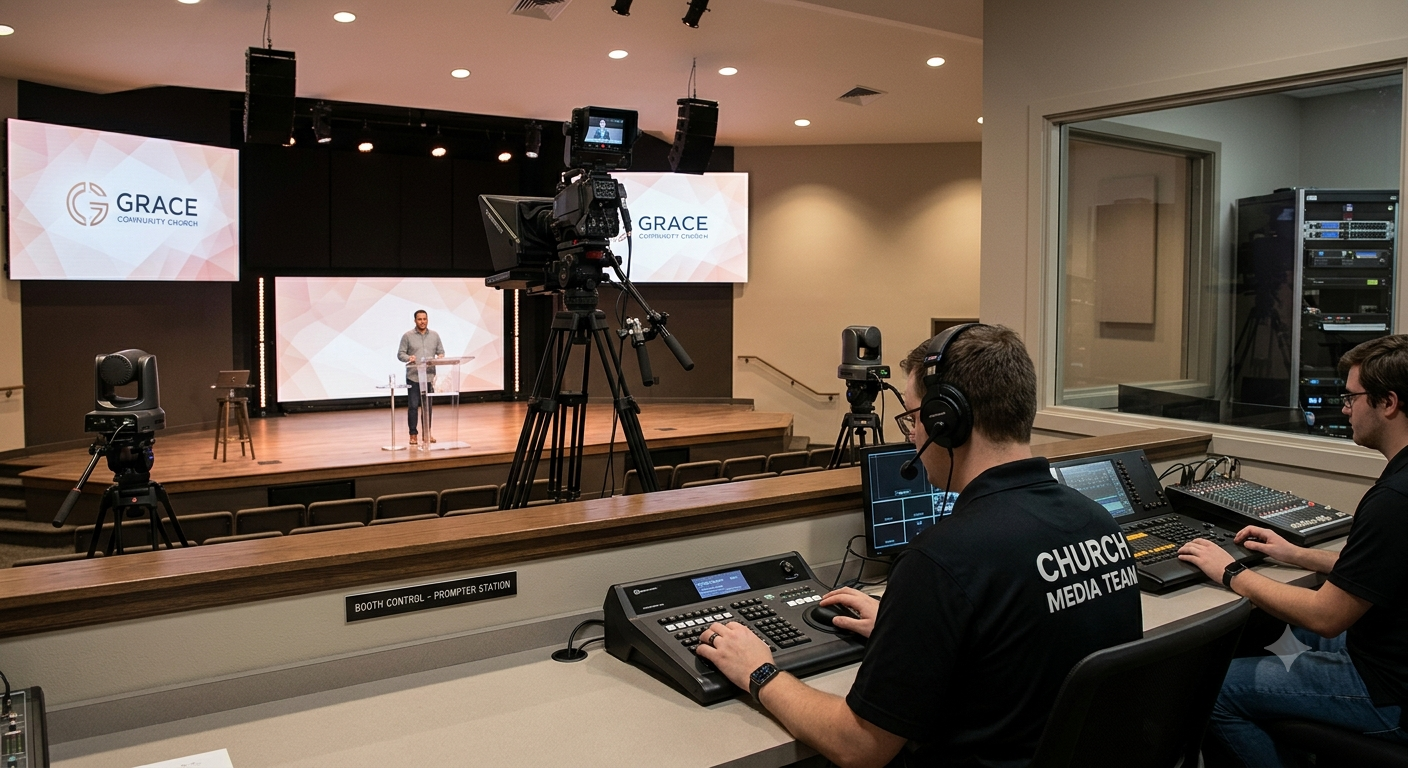
Equipment, mounting, and booth control for media teams running a prompter on stage.
Open ScrollCue in your browser. No account, no download, no friction.
Yes. The core prompter is free with no time limit and no account: smooth scroll, script markup, section jumps, presenter notes, mirror mode, cue line, red dim, and full theming. Recording, camera and screen backgrounds, voice follow, and Event Mode are Pro, at $4.99 for a day or $99 for a year.
No. ScrollCue runs in the browser. Open it in Chrome or Safari on a phone, tablet, laptop, or desktop. You can also install it to your home screen as a PWA, which works offline, but that is optional.
No. Recordings save straight to your device with no watermark and no branding. Nothing is uploaded.
Yes, with Event Mode on Pro. One device acts as Studio, and you can connect up to ten teleprompters plus confidence monitors and phone remotes. Devices pair by QR code and talk to each other directly, peer to peer, with no server and no account.
Yes. Voice Follow listens through your microphone, matches what you are saying against the script, and glides the text to wherever you actually are. It only moves while you speak. Voice Follow is a Pro feature.
Most presenters land between 130 and 160 words per minute. Keynote speakers tend to be slower, around 110 to 130. If you are not sure, start on the Normal preset and nudge the speed with your scroll wheel during the first take, or use Voice Follow and let your own pace drive it.
Yes. ScrollCue can open a chromeless output window that renders only the scrolling text over a chroma key background. Add it to OBS as a window capture, key out the green, and the script sits over your scene.